Claude Code starts every conversation with a long system prompt, hands work to named subagents, and calls tools all day. mike records all three, and this page covers the screens that show them: Prompts, Agents, Tools, Agent dispatches and the tool-error list. Use them to see which prompt a session ran with, whether a prompt changed between versions of Claude Code, which subagent was given a task, and which tool calls failed. They only read what was captured; nothing here changes what is sent to Anthropic.
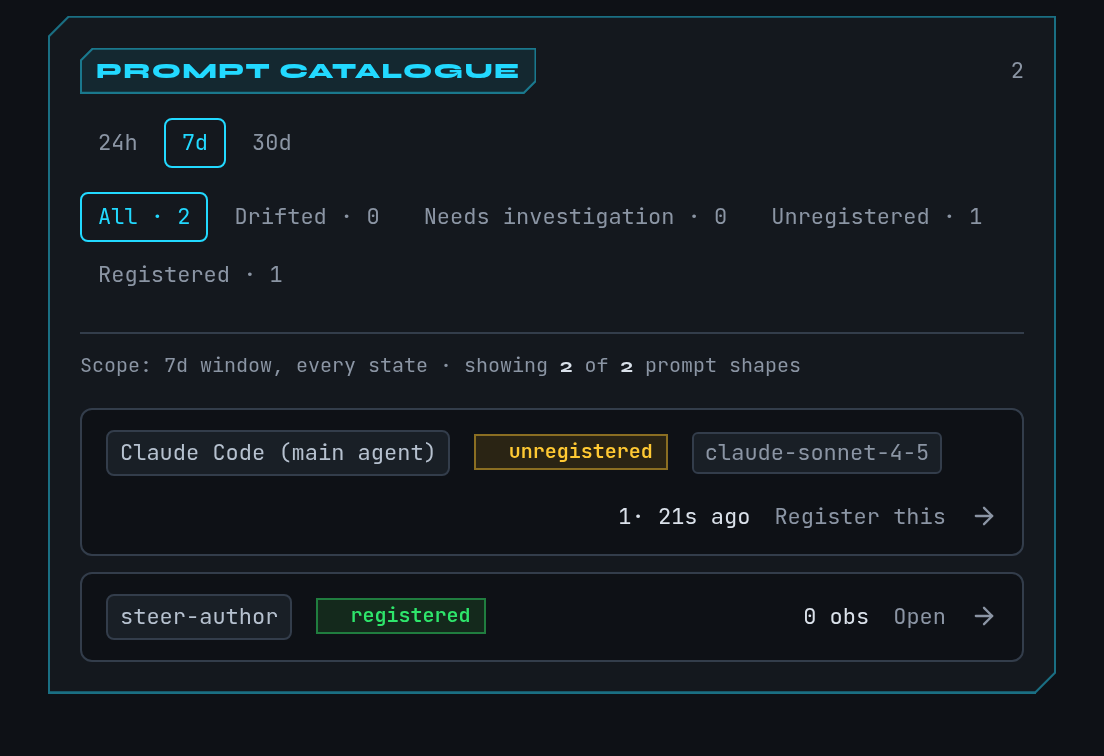
This is a fictional example. The prompts and agents shown come from the
guide’s docs session, not from real traffic.
| Screen | Menu name | Route |
|---|---|---|
| Prompt catalogue | Prompts | /prompts |
| Agent registry | Agents | /agents |
| Tool calls and errors | Tools | /tools |
| Subagent dispatches | Agent dispatches | /diagnostics/agent-dispatches |
Find out whether a prompt changed
Continue the example. You updated Claude Code and the docs session started behaving
differently. You want to know whether its system prompt changed.
- Open Prompts. Every distinct system prompt mike has seen is a row, named for the agent
it belongs to: Claude Code (main agent) or a subagent such as
frontend-developer. Each row shows how often it was seen and when last. - Rows are ordered by what needs attention first: Drifted, Needs investigation, Unregistered, Registered. Use the chips above the list to show one group.
- Select a drifted row (its action reads Review drift). The Drift tab shows the prompt you registered next to the one most recently seen, with altered blocks marked altered.
- Read the difference. If the new wording is fine, register the new prompt; if not, you now know which Claude Code update changed what.
You should see two versions of the same agent’s prompt, with the changed block highlighted.
What registering means
A prompt is unregistered until you give it a label and say which agent it is. Registering is bookkeeping: it lets mike tell you when that prompt changes. An unregistered prompt still passes through untouched, and a registered one is not blocked or edited either.
To register one, select Register this on an unregistered row, name the composition, and
confirm. You can add the agent’s file, such as .claude/agents/<name>.md, and a persona to
link it to an agent. The composition page lists the prompt’s Blocks; a prompt whose
third block cannot be found shows a warning that traffic will not match until it is present.
The catalogue toolbar can import compositions from a JSON backup and export all registered compositions as JSON. Refresh reloads the list without waiting for the automatic refresh.
Volatile lines
Some prompt lines change on every run, such as a working-directory line, and would make
every session look like a new prompt. Volatile lines (/prompts/volatile-lines) lists
patterns that mike strips out before it decides two prompts are the same. To add one, give it
a name, a regular expression matched line by line, and the block it applies to. The bytes sent
to Anthropic are not changed by this; only mike’s comparison is.
Browse the agents
Agents lists every agent identity mike has seen: subagents Claude dispatched, the prompt versions captured for each, and its instances.
- Open Agents. Search by name, alias or definition in Find a name, alias or definition.
- Narrow by where the agent is defined with the source chips:
- observed: seen in traffic; no definition on disk was confirmed.
- file-backed: you confirmed it has a matching
.mdfile. - dynamic: generated on the fly by Claude.
- builtin: ships with Claude Code itself.
- Select Inspect agent. The page shows its aliases (Also known as), its description and, below, its dispatches and the prompt versions captured for it.
- Expand a dispatch to read the brief that was sent, or a prompt version to see its blocks.
On an agent’s page you can edit its description and which file defines it, and change its source. Deleting an agent keeps the captured evidence; only the link between them is cut.
With no agents yet, the page says No agents registered yet. Agents appear as named subagents show up in captured traffic, or when you register one against a composition. Open prompts takes you to the catalogue.
See what each subagent was asked
Agent dispatches lists every time a session handed work to a subagent.
- Open Agent dispatches. Leave Project and Since blank to see everything, or type
an exact project path and a date such as
2026-11-01T00:00:00Zand press Apply. - Each row shows when it happened and a short description. Expand one to read the full description. View brief opens the parent request, where the full brief is, because the page itself shows only the description.
- Clear removes the filters.
The list is empty until a session dispatches a subagent: Sub-agent spawns appear here once a session dispatches a Task tool call.
Search tool calls and find failures
Tools is a feed of every tool call across all sessions.
- Open Tools. Choose a Project, a Tool name and a Time range (any time, last hour, 24 hours, 7 days or 30 days), then Apply.
- Switch on Errors only to see failed calls. The address then ends in
#errors, and/diagnostics/tool-errorsopens the same view. - Expand a call to read its full input and jump to the request it came from.
- Clear resets the filters.
Calls are grouped by project, and calls from sessions with no project fall under Ungrouped. With no calls, the page says Tool calls appear here once sessions make their first tool use.
When it is empty or something fails
| What you see | Why | What to do |
|---|---|---|
| No prompt traffic captured yet | No session has gone through mike. | Start one; see Quickstart. Nothing to configure first. |
| Couldn’t load the prompt catalogue, Couldn’t load agents, Couldn’t load agent dispatches | mike’s inspect service or database is unreachable. | Run mike doctor; see Troubleshooting. |
| A prompt shows Needs investigation | mike could not read the prompt’s three blocks, for example the system field was a plain string or missing. | Open it for the reason mike recorded. |
| This request was captured but has no system prompt to prefill from. | You started a registration from a request without a system prompt. | Choose a different row. |
| No agent for a subagent you know ran | Agents appear only after a dispatch is captured. | Check Agent dispatches. |
Where this goes next
To read one session’s calls in order, open it from Sessions. To change what a prompt contains before it is sent, see Filters. What mike keeps and sends is on Privacy, and the settings that gate each feature are in Settings.