A session is one Claude Code conversation. mike keeps every request it sent and every answer it got, and the Sessions page turns them back into something you can read: the turns you typed, what Claude replied, which tools it ran, and which request carried each of them. Use it to check what Claude was actually told, to find the moment you corrected it, and to see what a long run did while you were away. It only reads; nothing on these pages changes a request.
Open Sessions in the left-hand menu, or go to http://localhost:9990/sessions.
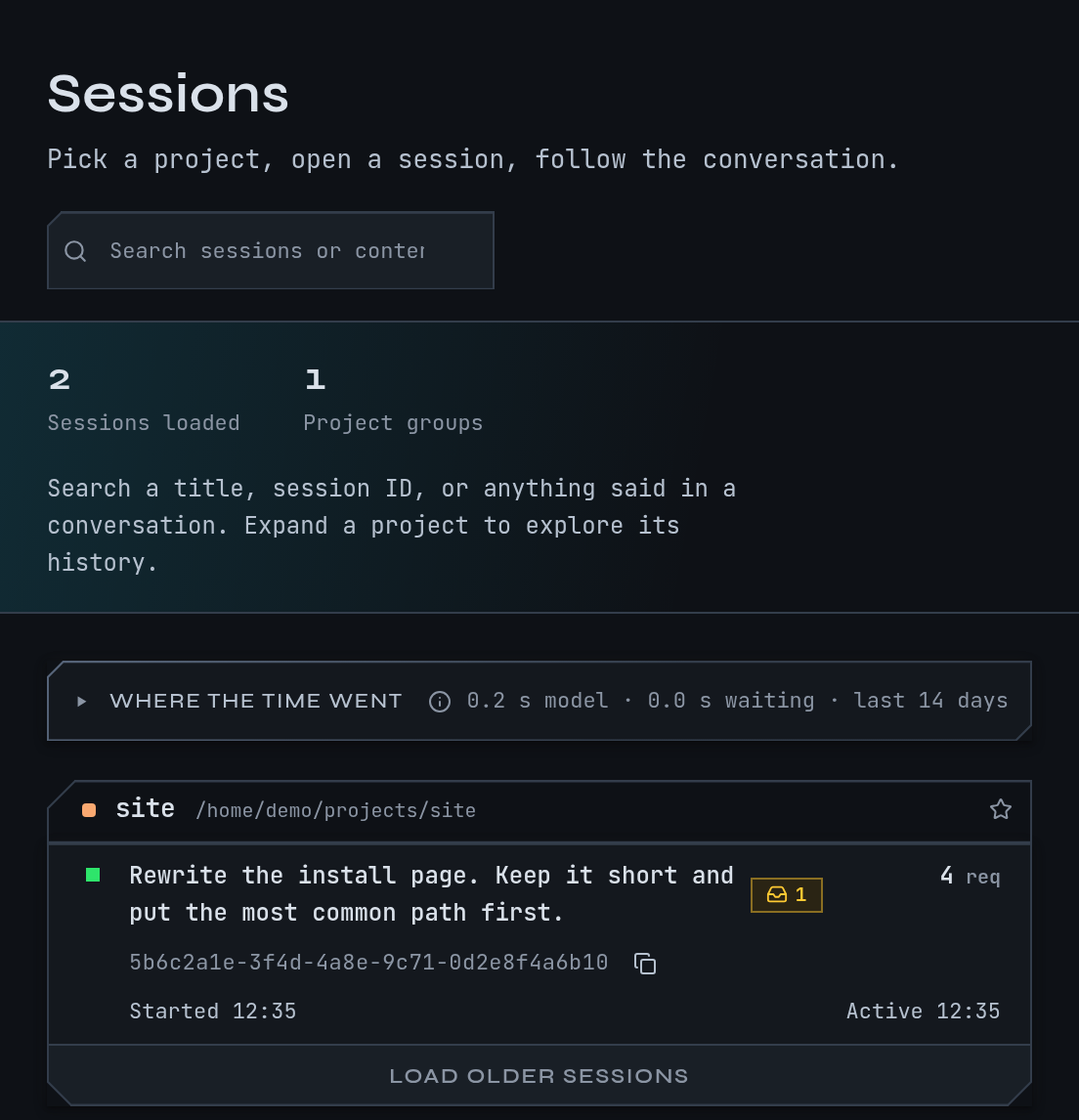
The examples on this page continue the fictional session from the quickstart:
a session named docs in ~/projects/site, working on “Rewrite the install page”. In it you
told Claude: “Put Homebrew first on the install page.”
Find your session
- Open Sessions. Sessions are grouped by project, with a coloured chip per project.
- Open the
~/projects/sitegroup if it is collapsed. Each row shows the session’s title, its number of requests (Req), when it Started, when it was Last active, and its Session id. - Select the
docsrow. The session page opens, headed by the session’s title and a short id you can copy with the copy button.
The pin beside a row pins the session. Pinned sessions are exempt from mike’s time-based clearing of old data. A session that is running now shows live. If a project has more sessions than it lists, choose Show N more sessions at the foot of the group.
If the page shows No sessions yet, Claude Code has not sent a request through mike. Follow the quickstart, then check Troubleshooting.
Find something a session said
The search box on the Sessions page finds text across everything mike captured, not only titles.
- Click Search sessions or content and type
Homebrew. mike searches once you have typed four characters. - The list switches to the sessions that match, still grouped by project. The label beside the box says what was searched: titles, conversation and bodies.
- Open the
docsrow. Each match shows where the words appeared.
The search covers the session’s title and id, what you and Claude said, and the raw responses (tool results, thinking and everything else captured). Raw responses are searched for the last seven days only; the page says so when that limits the result. If nothing matches the page says No sessions or content match the search. Choose Clear search to see every session again.
Typing a session id, or part of one, finds that session directly.
Read the session page
The session page has four parts, top to bottom.
- The overview. A short summary of what the session did, if the judge has written one (Judge); the numbers for the session; the files Claude changed; and the agents it started. The numbers are Requests, Tokens, Cache reuse, Span, Avg latency, Operator asks, Last request, Completion check, Outcomes and Models. Hover a label for what it means.
- Session flow. A board of the session over time, loaded when you scroll to it.
- Requests. The timeline of turns, described below.
- Comms, a speech-bubble link in the header, for the messages this session exchanged with others.
The first time you open a session that has no judge summary, the summary area stays empty. The judge is off in a fresh install, so a missing summary does not mean anything went wrong.
Follow the timeline
The Requests card is the session as a list of turns. A turn is something you asked, with Claude’s reply, the tools it used and any sub-agents it started. Open a turn with the arrow on its left.
Above the list:
| Control | What it does |
|---|---|
| Search box | Finds text in prompts, replies, tool calls and file paths, or a request by # and its number |
| All, Prompts, Tools, Errors, Sub-agents | Filter turns by kind. Prompts collapses to your asks and the replies; Tools also lets you pick one tool |
| Operator only | Shows only what you typed. Turns that Claude Code generated itself (labels, hook feedback, messages between sessions) are hidden |
| req box | Jumps to a request by its number |
| Expand all / Collapse all | Opens or closes every turn |
To find your correction:
- In the timeline search box type
Homebrew. - The turn “Put Homebrew first on the install page.” stays; others hide. Choose Operator only if replies also match and you want only your own words.
- Open the turn. Beneath your prompt you see the reply Claude gave next, and the tools it called to make the change.
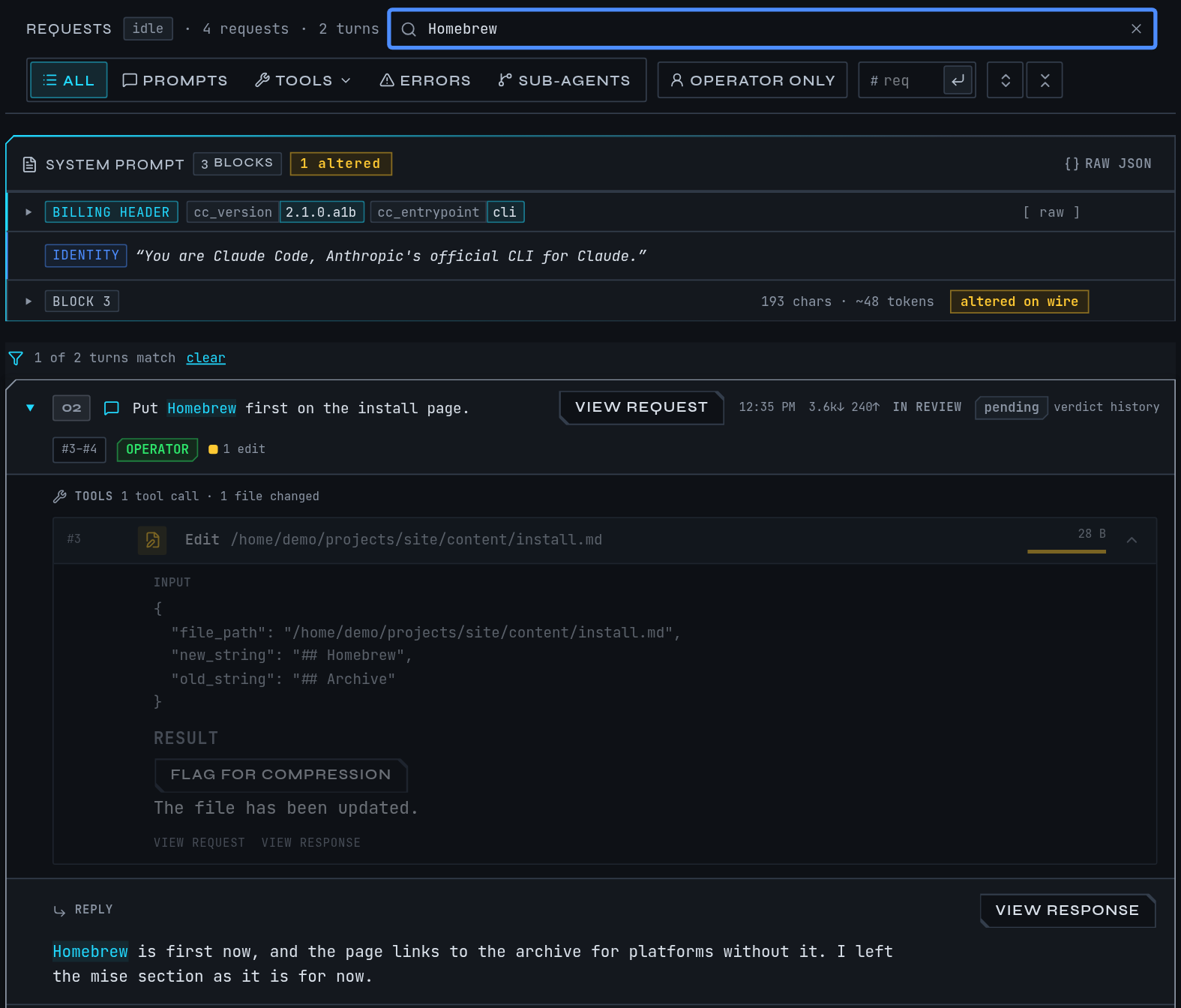
If a turn says No reply captured yet, the answer is still arriving or the request failed. If the list says No requests in this session yet the session exists but nothing has been captured for it. No turns match the current filter means your search or filter hid everything: clear it.
Look at one request
Every turn is made of one or more requests to Anthropic. To see exactly what was sent and what came back, open a request from its turn.
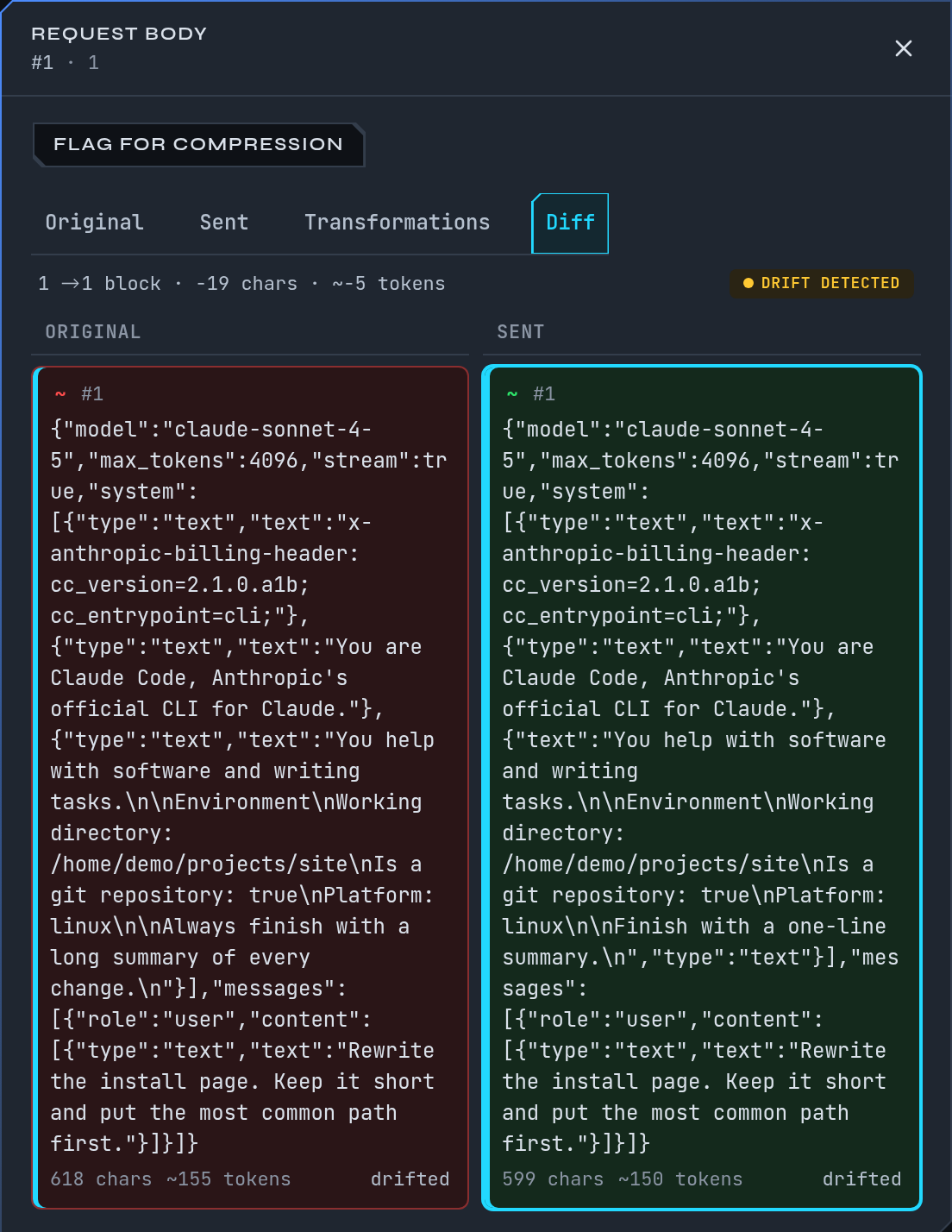
- In the open turn, choose view request beside your prompt, or view response beside
Claude’s reply. A panel opens over the timeline with Request body, Response body,
Findings or the request’s events. Its address carries
?drawer=, so you can copy a link to it. - Read the request body under four tabs:
| Tab | What it shows |
|---|---|
| Original | The request exactly as Claude Code sent it to mike |
| Sent | The request as mike forwarded it to Anthropic |
| Transformations | What mike changed between the two, if anything |
| Diff | Original and sent side by side |
- Below it, the response, with the accumulated text and any thinking.
On a fresh install Sent is the same as Original and Transformations is empty, because mike changes nothing until you turn on a feature that does. Once a filter, a lesson reminder or a steerer edits a request, this is where you see it.
The same request also has its own page at http://localhost:9990/sessions/<session id>/requests/<number>,
which shows the session’s timeline with that request selected. If it says Couldn’t load this
request, the request has been removed by retention or mike is not reachable. Sessions you
have pinned keep their requests.
Replay the session flow
The Session flow board shows the session as lanes over time, one per agent, with the requests, tool calls and messages drawn where they happened.
- Scroll to the board. It loads when it comes into view.
- Use the transport controls: Skip to start, Rewind to previous turn, play and pause, Fast-forward to next turn, Skip to end, and Follow live for a running session. Speed changes the replay rate. A label shows LIVE or REPLAY.
- Select anything on the board. The Selected panel describes it, with Open request to jump to the request. The Requests card below narrows to the requests involved; the chip above the list shows how many, and its × shows all requests again.
- Drag across the timeline strip to choose a range, then Zoom to selection, Full range or Clear selection.
The address updates as you select and seek, so a link to the page keeps your place.
If the board says Flow is unavailable for this session, the session was captured in a form the board cannot draw. The Requests list still has everything. A STALE badge means newer requests arrived after the board loaded.
See related sessions
The overview has a collapsed Related sessions card: the sessions whose content is nearest
to this one. Open it, or choose its expand icon (Open full graph for this session) for the
full graph at http://localhost:9990/sessions/<session id>/graph. Select a neighbour to open
that session. The graph needs mike’s meaning-based search: otherwise it says the session has
no embedding yet because the embedding backend is disabled, or because it has no turns with
text to embed. Turn the search on under Embedding in Settings; a remote
embedding provider receives session text (Privacy).
Read messages between sessions
Sessions started with mike spawn can send each other mail (Sessions). Two
places show it.
On one session. Choose the speech-bubble link in the session header. The page lists that session’s threads, a Team activity feed of the agents it dispatched, and a form to start a thread. Select a thread to read it. If it says No messages yet for this session, nothing has been sent to or from it.
Across all sessions. Open Comms in the left-hand menu, http://localhost:9990/comms.
It lists every conversation between your sessions, grouped by project.
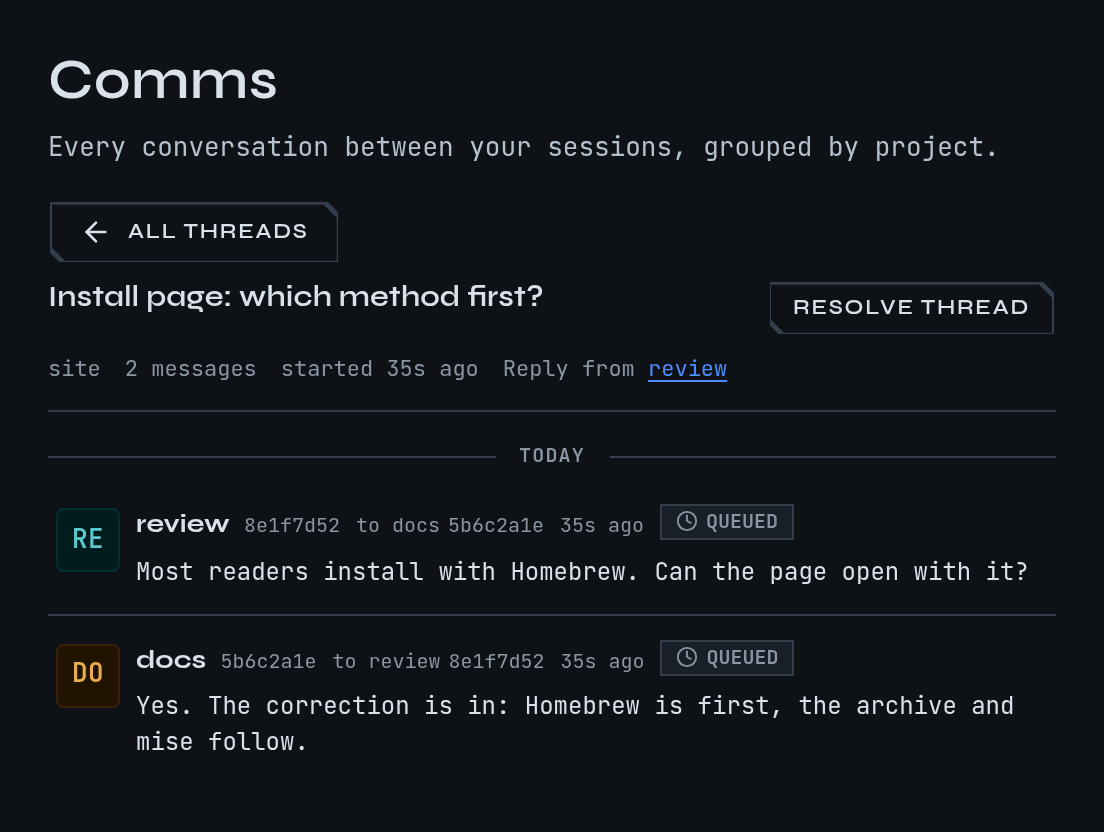
- Search projects by name or path, or open a project to see its threads.
- Narrow the threads by Tag, by participant, or by All, Open or Resolved.
- Select a thread to read its messages. Resolve marks it done.
- Refresh reloads the list. The address keeps the project, thread and filters.
The Comms page is for reading and for starting a thread; to reply, open the thread from a session’s own comms page. No threads yet means no session has messaged another. Thread comms aren’t live yet means the running mike does not answer for threads.
Next steps
- Keep a correction as a lesson so later sessions get it.
- Watch several sessions as one project.
- Check which tools a session ran and which failed.