The web UI is where you read what mike captured and where you change what it does. Open
http://localhost:9990 while mike is running. It updates as new requests arrive, so you can
leave it open beside Claude Code. This page covers the parts every screen shares: the menu,
search, the top bar, the tour and Help. What each screen shows is on the page for its part,
listed in Find a page.
The web UI has no login. Open it only on the machine mike runs on. See Privacy.
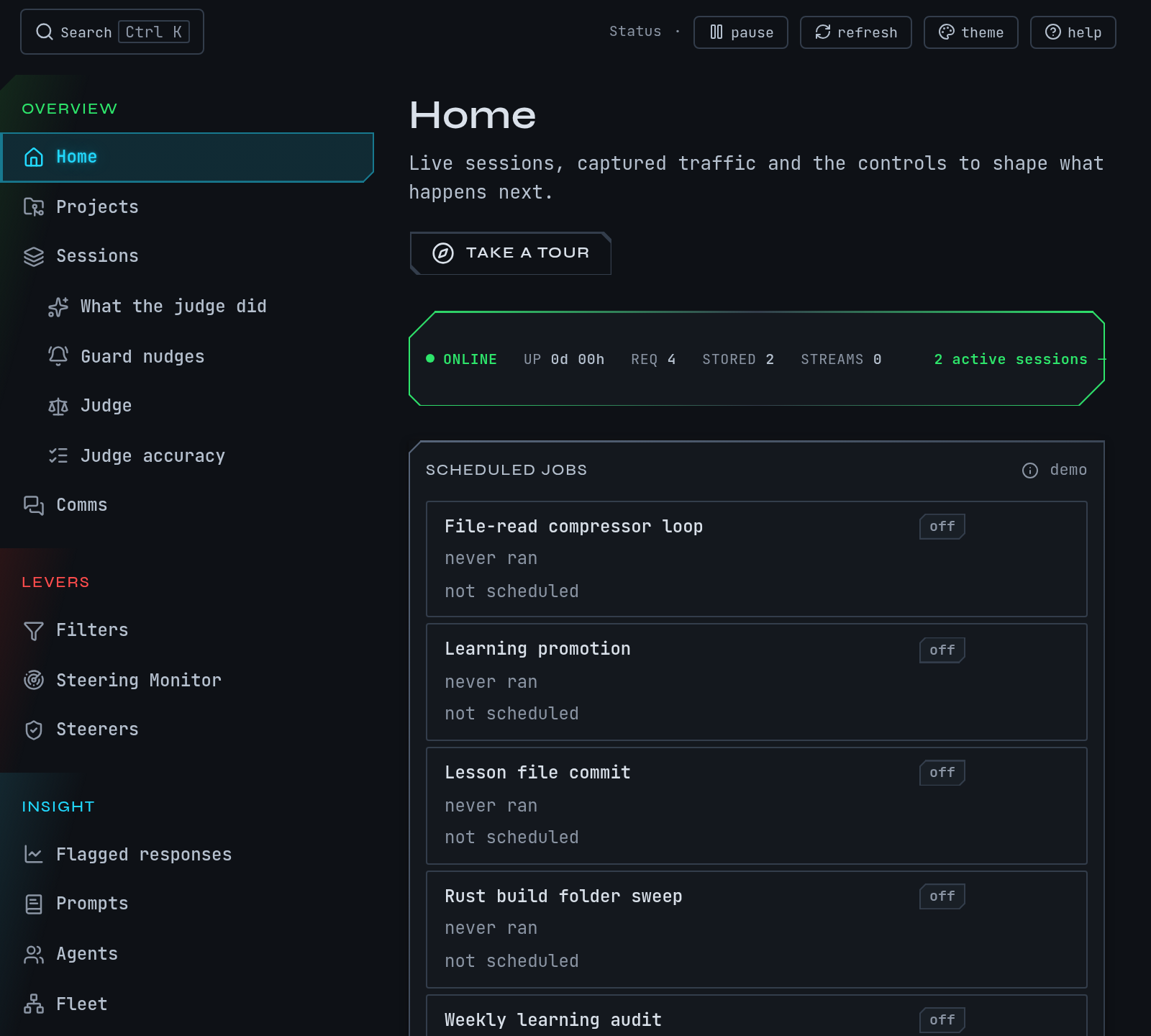
This is a fictional example capture: a session named docs in ~/projects/site, working on
“Rewrite the install page”. Nothing in it comes from a real machine.
Open the web UI
- Start mike and Claude Code as in the quickstart.
- Open
http://localhost:9990in a browser. - You land on Home. With a session running, you see a strip of live counts, then the sessions running now, grouped by project, and cards for every other page.
If nothing has been captured yet, Home shows a short getting-started panel instead of the cards. Send one request through mike and it fills in. If the page does not load at all, mike is not running: see Troubleshooting.
Move between pages
The left-hand menu lists every page in four groups. Hover an item for a one-line description.
| Group | What its pages do |
|---|---|
| Overview | Home, Projects, Sessions, the judge’s pages and Comms: what is happening and what was said |
| Levers | Filters, Steering Monitor and Steerers: pages that change what mike does to traffic |
| Insight | Flagged responses, Prompts, Agents, Fleet, Compression review, Tools and Agent dispatches: pages that only read what was captured |
| System | Memory, Skills, Proposals, Memory diagnostics, Settings and Help |
The judge’s pages and the Settings sub-pages sit indented under their parent in the menu. The chevron at the foot of the menu collapses it to icons; on a narrow window it becomes a menu button at the top left.
Every page, its address and its guide are in Find a page.
Search
Press Ctrl K (⌘ K on a Mac), or click Search in the top bar, and type. The box
searches:
- Recent pages you opened,
- Pages, by name,
- Actions, such as pinning the current session or opening the filter workbench,
- Help topics and the glossary,
- Sessions, by title, session id or project, once you type two or more characters.
Choose a result with the arrow keys and Enter. When nothing matches, the box says “No
matches” and suggests a page name, session id or project.
To find something said in a conversation, use the search box on the Sessions page instead: see Find something a session said.
The top bar
The top bar is on every page.
| Control | What it does |
|---|---|
| Search | Opens the search box above |
proxy → http://localhost:9988 |
The address Claude Code sends its requests to |
fwd → api.anthropic.com |
Where mike forwards them |
| Status indicators | Whether the page is connected to mike, how many requests were captured (click it for the feed), and Persistence off when mike is not saving what it captures |
| pause / resume | Stops and restarts live updates in your browser. Capture carries on |
| refresh | Reloads the counts |
| theme | Choose a colour theme. It applies at once and is remembered in your browser |
| help | Opens the Help drawer |
pause only freezes what you see. mike keeps capturing while the page is paused.
Take the tour
On Home, choose Take a tour, or open http://localhost:9990/?tour=1. The tour dims the
page and points at six areas in turn: the live counts, the “start from a task” shortcuts, the
sessions running now, and the Insight, Levers and System groups. Replay it any time from the
same button. Home is the only page with a tour.
Read Help
Choose Help in the menu to open /help. It has:
- How-to guides: getting Claude Code talking to mike, inspecting a captured request, rewriting outbound system prompts, investigating a prompt anomaly, keeping the data you care about, and how steering works;
- a glossary of the terms the interface uses;
- the documentation bundled with mike, such as installed setup and recovery.
The help button in the top bar opens the same material in a drawer beside the page you are on, so you do not lose your place. Hovering a dotted label anywhere in the interface shows a short definition and, where there is one, a link to its glossary entry.
When a page is empty
An empty page almost always means nothing has been captured, or the feature behind it is off.
| You see | Why | What to do |
|---|---|---|
| Home shows a getting-started panel | No request has reached mike yet | Follow the quickstart |
| No sessions yet on Sessions | Claude Code has not sent a request through mike | Check Claude Code points at mike: Troubleshooting |
| Thread comms aren’t live yet on Comms | The running mike does not answer for message threads | Restart mike from the same install; see Troubleshooting |
| No threads yet on Comms | No session has messaged another | See Sessions |
| The judge, Memory, Skills or Proposals pages are empty | Those features are off in a fresh install, or have nothing to show yet | Turn them on in Settings; see Memory and Judge |
| A page says it could not load | The page asked mike for data and mike did not answer | Press Retry; if it keeps failing see Troubleshooting |
Next steps
- Read a session: the page you will use most.
- Find a page: every page and command in one list.
- Decide what to turn on.